

#
Merge vs. Embed vs. Single-File Bundling in .NET Reactor
Merging combines assemblies into one. Embedding and single-file bundling package assemblies together without merging them.
Embedding or bundling a dependency does not automatically protect its code.
#
Compare the options
#
Choose settings for each file
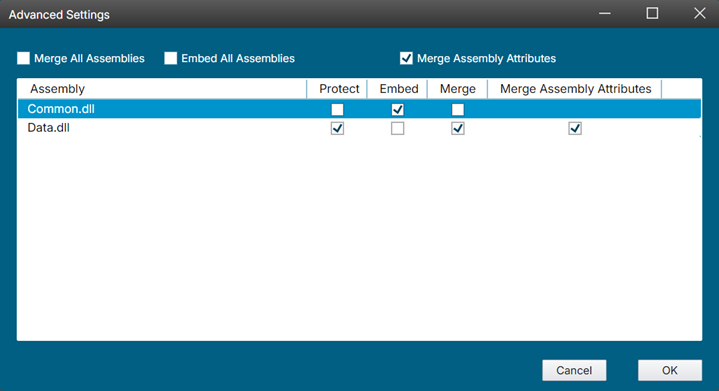
Add your dependencies under Additional Assemblies, then open 1. General Settings → Embed / Merge Settings → Advanced Settings.
For each file, choose whether to merge it, embed it, or do neither. You can also choose whether each assembly should be protected.
#
Merge libraries that belong to one application
Use Merge Assemblies when you control the libraries and do not need to distribute or update them separately. Enable merging for those files in Advanced Settings.
Merging changes the assembly structure. Test resources, reflection, assembly-qualified type names, and code that checks assembly identity. Avoid merging third-party libraries that are already protected. Keep them separate or test embedding instead.
#
Embed dependencies without merging them
Use Embed Assemblies to store dependency assemblies inside the main assembly and load them from memory. In Advanced Settings, choose which dependencies to embed and which to protect.
For dependencies already protected in a separate run, make sure the public types and members used by the application have kept their original names. Embedding does not fix references to renamed code.
Do not assume an embedded dependency is available as a physical DLL at its original path. Check any loaders or plugins that expect to open a file from disk.
#
Create a single-file application
You can create the single file with either the .NET SDK or .NET Reactor. The recommended approach is to publish with the SDK, then protect the resulting bundle.
#
Publish with the .NET SDK, then protect
Publish with <PublishSingleFile>true</PublishSingleFile>, then open the resulting executable as the Main Assembly in .NET Reactor. Select any additional assemblies inside the bundle that need protection and click Protect. .NET Reactor creates a new bundle containing the protected assemblies.
Deploy the new bundle, not the original publish output. You do not need to enable .NET Bundling to protect an existing SDK single-file bundle.
See Protect a .NET Single-File Application for the full workflow, including trimming requirements.
#
Let .NET Reactor create the single file
Start with a regular build or publish output rather than an existing single-file bundle. Open the main assembly, select the additional assemblies to protect, and enable 1. General Settings → .NET Bundling.
.NET Reactor protects the selected assemblies, then packages the application and its dependencies into a single file.
#
Keep plugins and reusable libraries separate
Keep assemblies separate when a plugin host, another application, or a NuGet consumer needs to load or update them individually. Preserve the public names and interfaces those consumers depend on.
For your application's own libraries, cross-assembly obfuscation can update references between assemblies protected in the same run, without merging them. For independently distributed libraries, follow Protect .NET Libraries and NuGet Packages.
#
Test the files you will ship
Test the protected output in a clean directory, away from the original build files. Check startup, dependency loading, resources, reflection, and plugins, along with your installer and update process. Files left in the build folder can hide missing dependencies.
Also verify that the intended assemblies are protected. A working single-file application does not prove that every dependency was protected.
#
Related topics
Verify protected output · ReadyToRun · Choosing protection settings