

#
Customers, Products and Licenses
For normal use, create records in this order:
- Project
- Product
- Customer
- License
- Floating License or Sale, when needed
The pickers connect the records. You do not need to copy database IDs by hand.
#
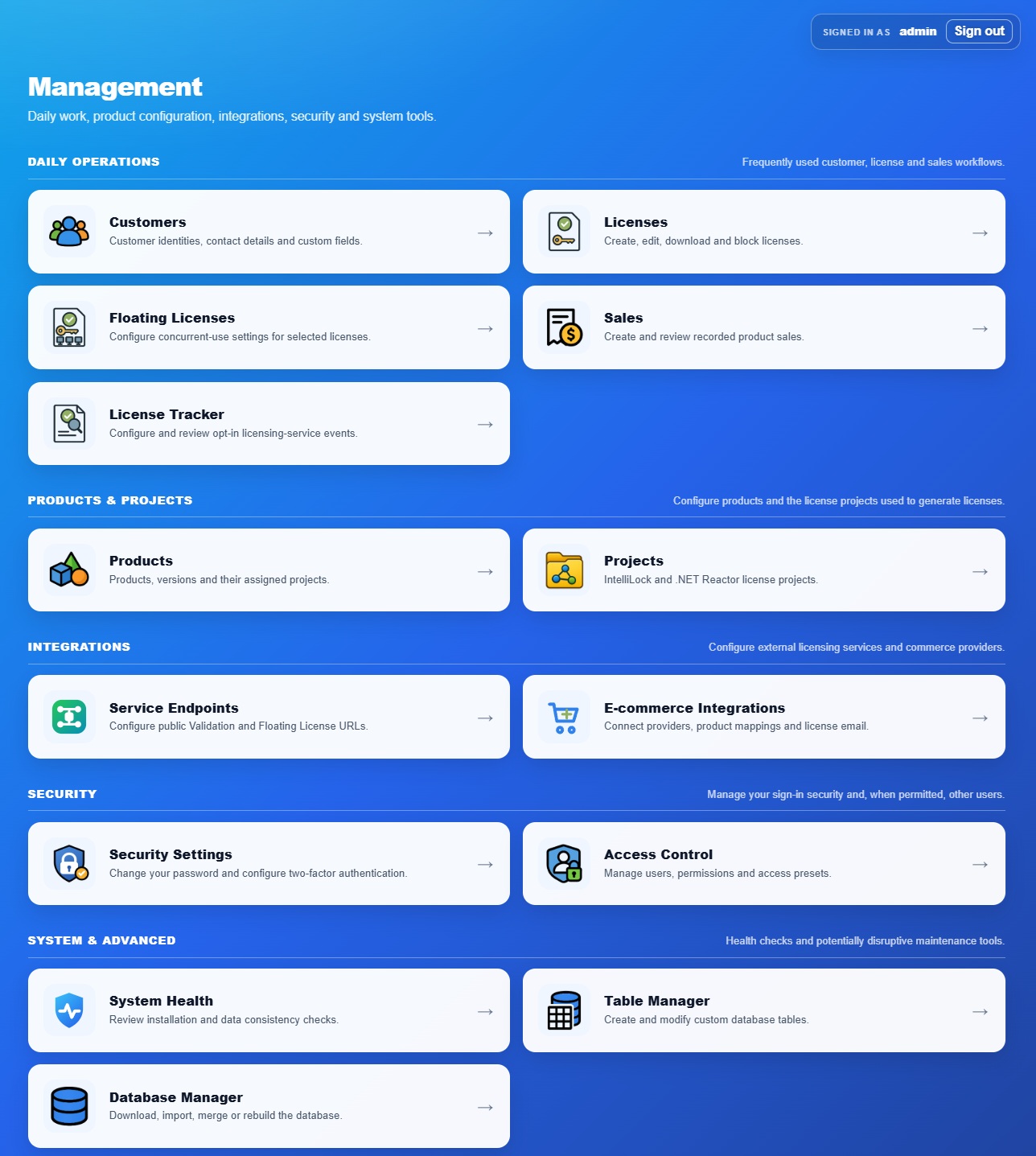
Management dashboard
The dashboard groups features by purpose:
- Daily Operations: Customers, Licenses, Floating Licenses, Sales and License Tracker.
- Products & Projects: Products and Projects.
- Custom Data: visible only when at least one permitted custom table exists.
- Integrations: Service Endpoints and E-commerce.
- Security: Security Settings and Access Control.
- System & Advanced: System Health, Table Manager and Database Manager.
Cards are hidden when the signed-in account does not have the required permission. A health warning links directly to the detailed read-only report.
#
Working with tables
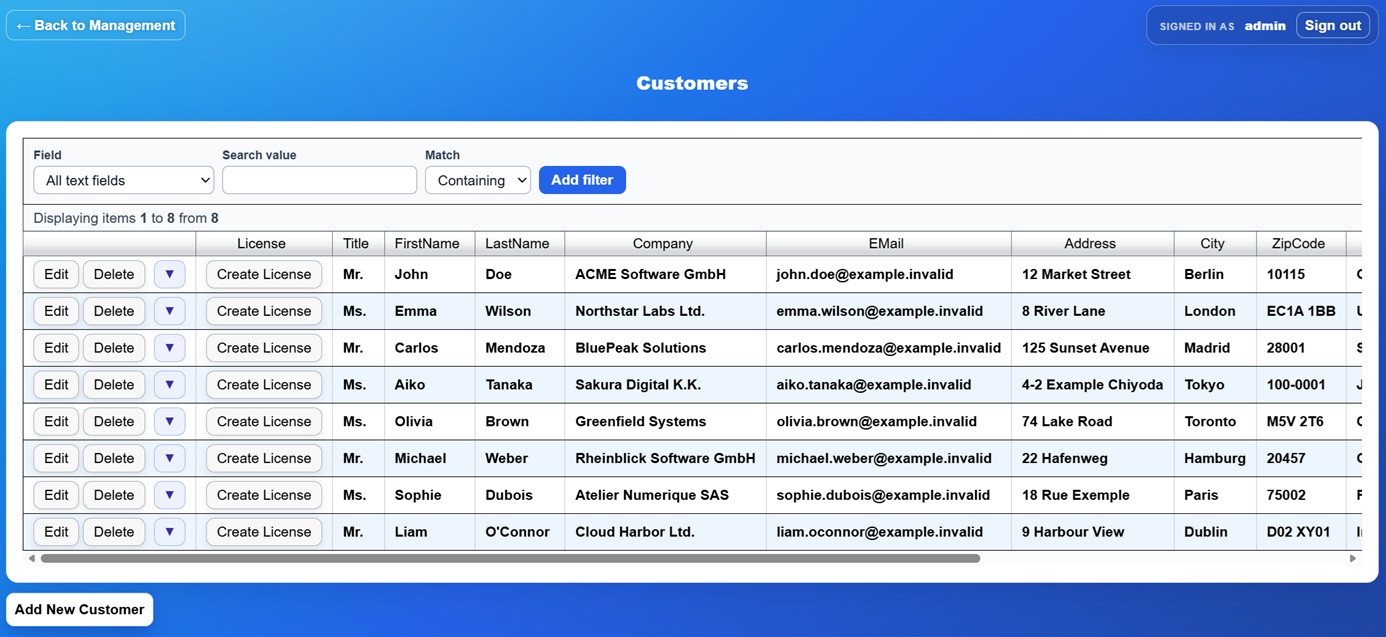
All standard data grids provide server-side filtering, sorting and paging. This keeps large databases responsive because only the current page is loaded.
- Press Enter in the filter controls to add a filter.
- Several filters are evaluated from left to right.
- Date columns offer From/To inputs and Boolean columns offer Yes/No.
- Record IDs use exact matching and are not included in general text searches.
- Active filters appear as removable chips; Clear all removes all filters.
- Choose Edit, change values and press Enter to activate Update.
- The compact ▼ menu beside Edit/Delete provides Show IDs and Show details. Show IDs copies stable record and relation identifiers. Show details follows relations such as Floating License → License → Product → Project and Customer, while omitting empty fields and security secrets.
- Picker rows intentionally omit this information menu. Their Select action only returns the chosen relation to the calling editor.
#
Projects
A Project connects a display name to a license-generator project file.
ProjectFilePath must name a file inside App_Data, for example
MyProduct.ilproj. Absolute paths and paths escaping App_Data are rejected.
The file must exist when creating a license or serving an endpoint.
.ilproj files use the IntelliLock generator. Additional .nrproj records may
use the .NET Reactor generator for management and commerce license creation.
Validation and Floating service projects must remain .ilproj files.
#
Products
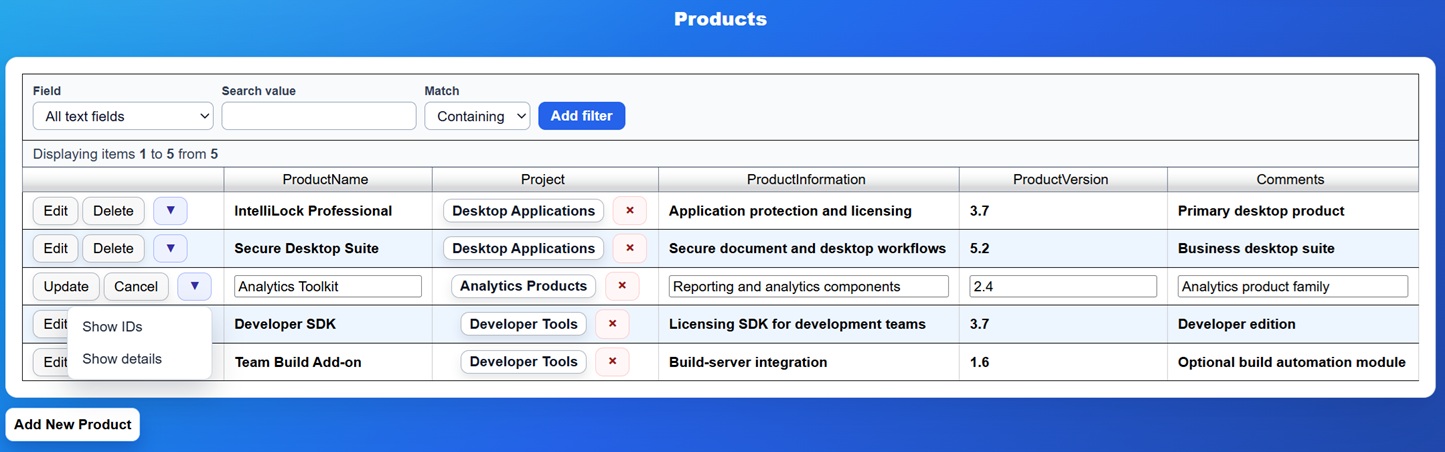
A Product contains its name, version, product information and an optional Project relationship. Select the project used to create licenses for this product. If a license has no product, or the selected product has no project, the default Project is used where a project is required.
The relation button opens a picker. Selecting a row returns to the original editor. The adjacent clear control removes the relation. Use ▼ > Show IDs to copy the ProductID and ProjectID, or Show details to inspect both records.
#
Customers
Customers hold business and contact information. The CustomerID is the stable identity used by new licenses. Names and company values remain important for legacy license files that do not contain IDs.
Use License > IsBlocked when you want to block one entitlement. For backward
compatibility, entering exactly disabled in a Customer's Comments field blocks
all license validation for that customer. Use this older customer-wide switch
carefully because it is less visible than the central License setting.
#
Licenses
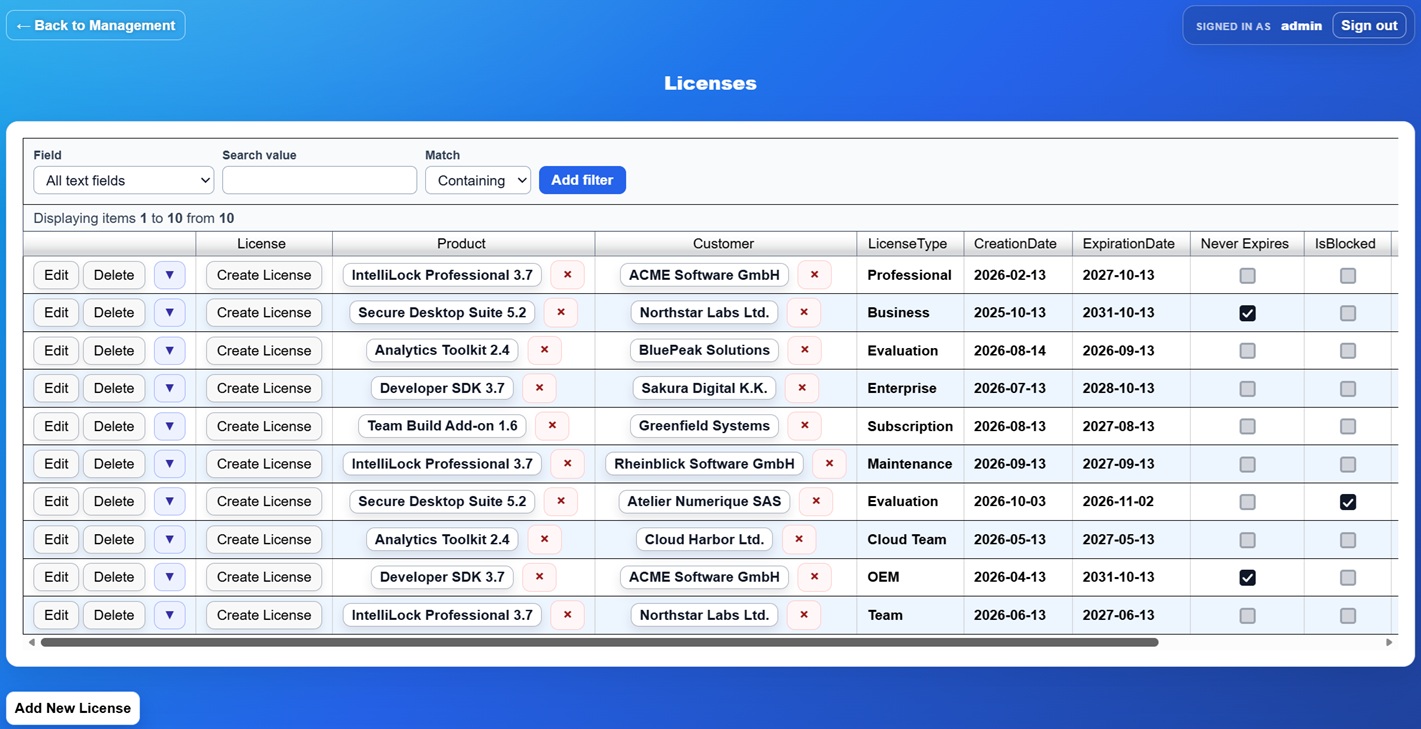
A License is the central entitlement record.
Dates are entered as calendar dates. Minutes and seconds are not displayed or processed by the management editor.
Selecting Never Expires affects only the expiration-date lock. It does not
disable other project locks such as expiration days, executions, runtime or
hardware binding. Existing dates such as 9999-12-31 are not interpreted as a
hidden NeverExpires sentinel.
The generated file contains the stable LicenseID and relevant customer, product, project and validity information. Live settings such as IsBlocked, comments and Floating pool behavior are deliberately excluded so a server-side change takes effect without reissuing the file.
#
Sales
Sales record Customer, Product, SaleDate, Quantity, UnitPrice, TotalPrice and comments. They are commercial history only. License creation was intentionally removed from the Sales page; create and manage entitlements on Licenses.
#
License Tracker
The tracker is an optional event log, not a second license table. It can record:
- accepted or rejected Validation requests;
- accepted or rejected initial Floating registrations; and
- optionally Hardware IDs for Floating events.
All tracking options are disabled by default. Pings and disconnects are not stored. Enable only the events needed for support or auditing to avoid unnecessary database growth.