
#
Configure License Server Validation
License Server Validation lets a protected application ask the website whether a license is still accepted. A central change to blocking, customer state or expiration can therefore take effect without distributing a new file.
You do not need to program a web service. Create the website, select the Project and enter the shown service URL in IntelliLock.
#
1. Prepare the records
Create a Customer, Product and central License. The License must select the customer. Select a product whenever the entitlement is product-specific.
The product should select the .ilproj Project used to protect the application.
If the license has no product or the product has no project, the default Project
is used.
#
2. Assign the Validation endpoint
Open Integrations → Service Endpoints. Under Existing root endpoints, select the project for ValidationService and save the root assignments.
The standard URLs are:
https://licenses.example.com/ValidationService.ashx
https://licenses.example.com/ValidationService.asmx
The page deliberately shows both URL forms. They provide the same Validation function and use the same Project assignment:
- protected .NET Framework applications use
.asmx; - protected .NET 5 and later applications use
.ashx.
You may enter either displayed URL in the IntelliLock project. At runtime, IntelliLock automatically selects the matching suffix for the protected application. You do not need separate license files or endpoint profiles for the two forms.
For multiple products or projects, create a virtual endpoint such as:
https://licenses.example.com/services/enterprise/ValidationService.ashx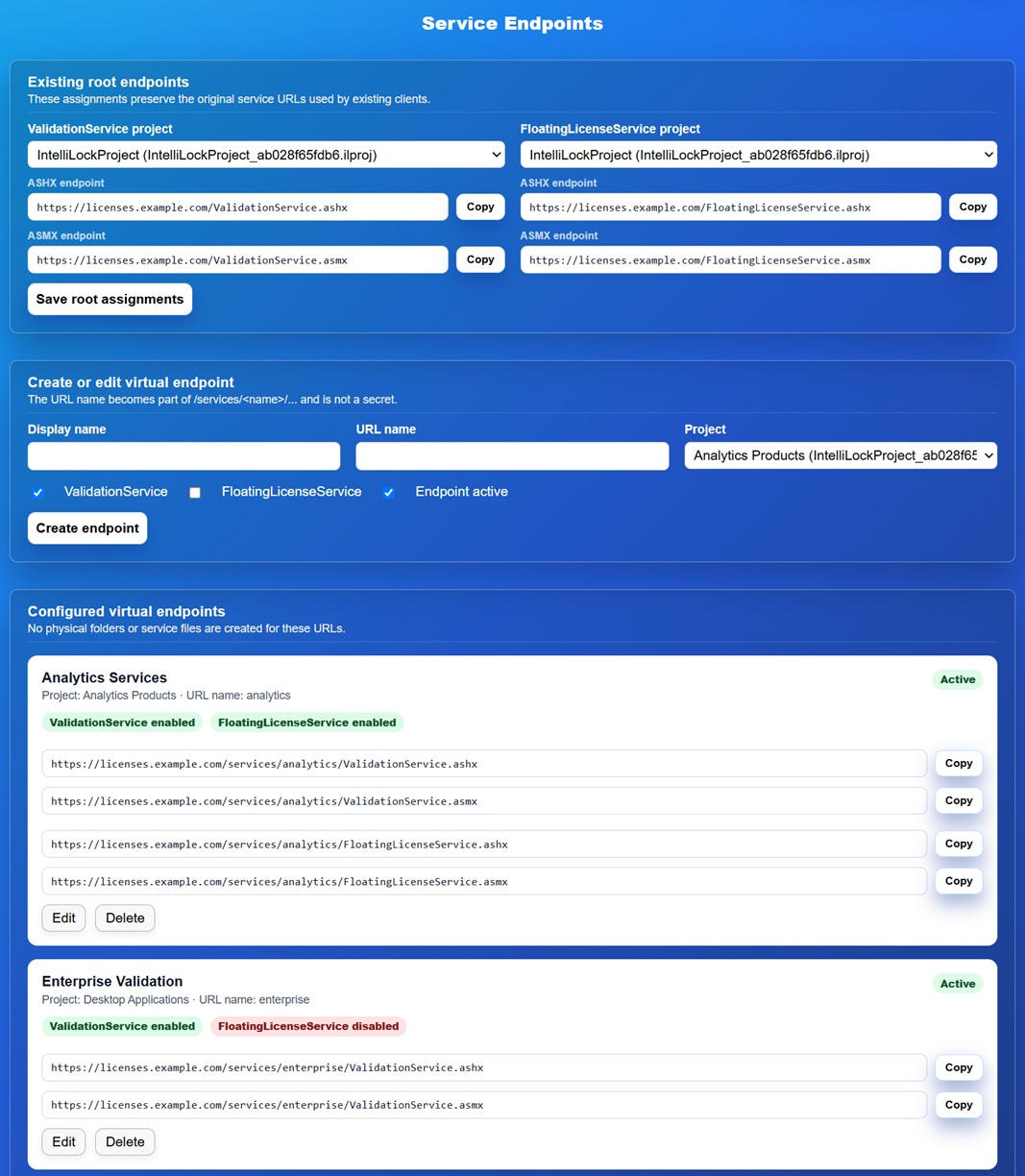
#
3. Configure IntelliLock
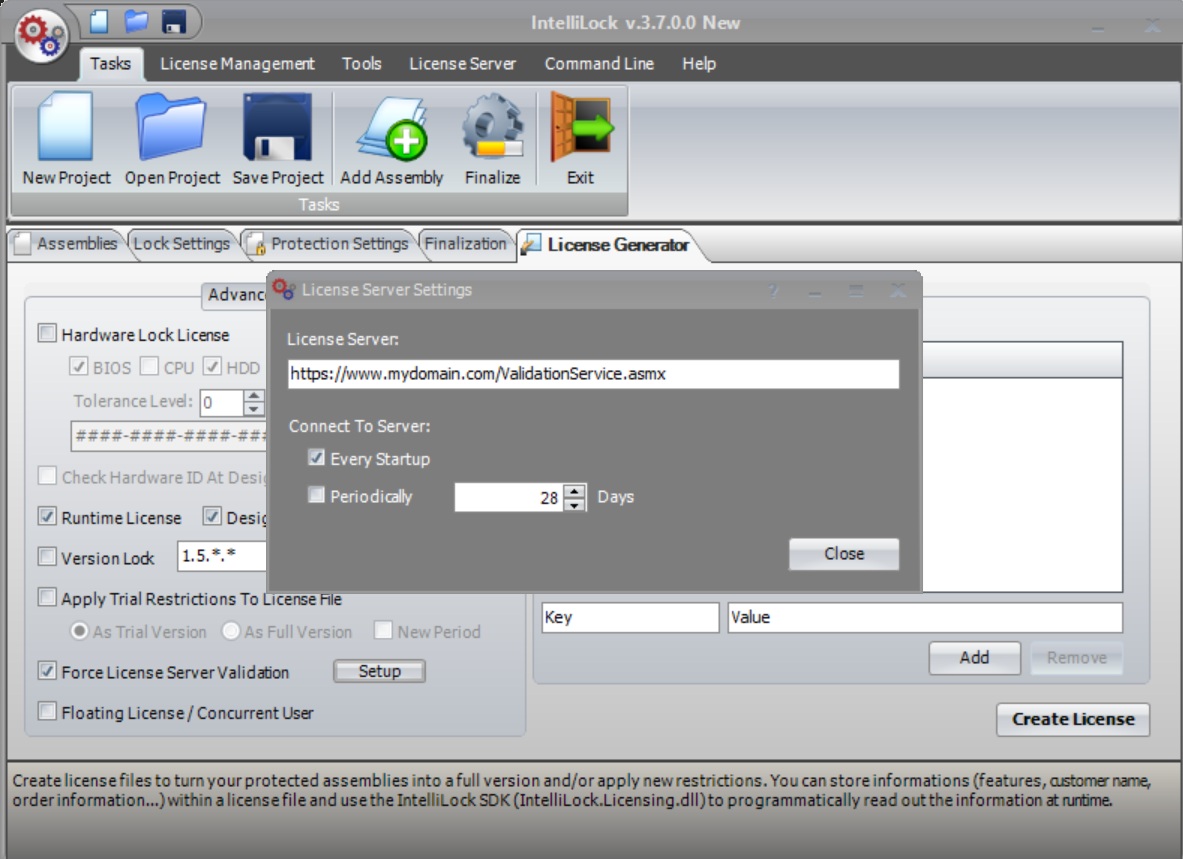
- Open the same
.ilprojused to protect the application. - In License Generator, enable Force License Server Validation.
- Open its setup dialog.
- Select the global/server option.
- Enter the chosen ValidationService URL.
- Protect the application again after changing embedded validation settings.
Use HTTPS in production. The service URL is contacted by the protected customer application and must be reachable from that customer's network.
#
4. Create the license file
Return to Licenses, save the central record, then choose Create License. The generated file includes LicenseID plus useful customer, product, project and validity information.
Test the protected application with this file before sending it to a customer. Then block and unblock the test License once to confirm that online validation uses the intended server record.
New files containing LicenseID are checked against exactly that License record:
- the record must exist;
- its customer and product must be consistent with the file;
- it must belong to the endpoint project;
- the customer must be usable;
- the License must not be blocked; and
- its creation/expiration rules must accept the current date, unless NeverExpires is selected.
#
Legacy files without LicenseID
Existing deployed files remain compatible:
- A historical LicenseTrackID is first treated as an exact current LicenseID.
- If no usable ID exists, the service resolves the customer from legacy company, first-name and last-name data.
- It then looks for a matching valid License, considering the product when it is available.
This fallback is necessarily less precise than a stable LicenseID. Reissue files with current IDs when practical.
#
Troubleshooting ServerValidationFailed
Check the following in order:
- The client can reach the exact URL and HTTPS certificate chain.
- The endpoint is active and ValidationService is enabled.
- The assigned
.ilprojexists safely insideApp_Data. - The central License has a Customer.
- LicenseID, CustomerID and ProductID in the file match the database.
- The endpoint project matches the Product/License project.
- The License is not blocked or expired.
- For a legacy file, customer names and company match a usable record.
- Rate limiting is not returning HTTP 429.
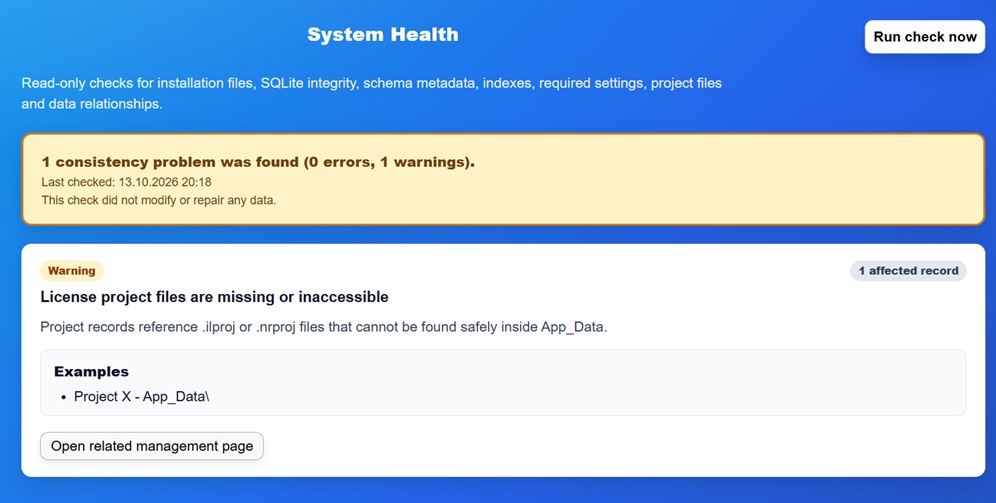
System Health detects missing project files and broken relationships. The License Tracker can optionally record rejected Validation requests and their short reason.
The dashboard first shows a short warning:
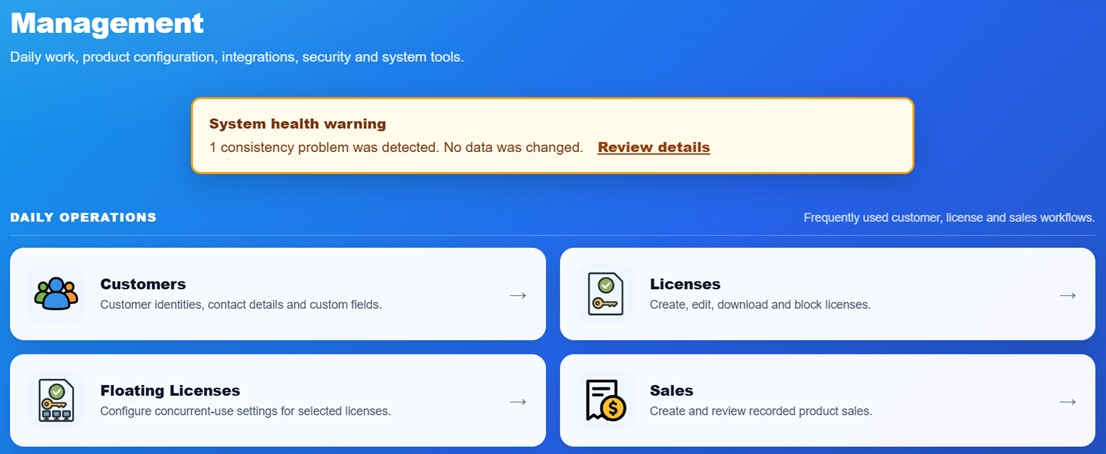
Open Review details to see the affected records and the related management page: