

#
Configure Web-based Floating Licensing
Web-based Floating Licensing controls concurrent usage through a public FloatingLicenseService endpoint. Each FloatingLicense pool is linked to one central License.
In simple terms, the central License answers who may use the product. The Floating License answers how many may use it at the same time.
#
Central License and pool responsibilities
The central License owns:
- customer and product;
- project selection through the product/default project;
- blocked state; and
- creation date, expiration date and NeverExpires.
The FloatingLicense pool owns:
ConcurrentMaxUser;CountUserPerMachine;CountUserPerAppInstance;UserRefreshTimeSeconds; andUserTimeoutSeconds.
The legacy CustomerID, ProductID and Blocked fields may remain internally for old files, but new pools must select a central License.
#
1. Create the central License
Create the Customer, Product and License as described in
Customers, Products and Licenses. Confirm that the
License is valid and uses the intended .ilproj project.
#
2. Create the FloatingLicense pool
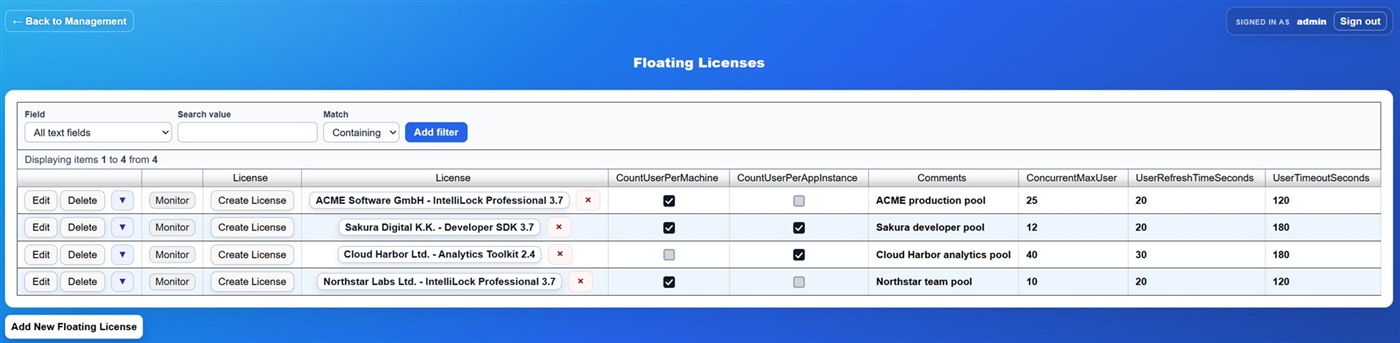
Open Floating Licenses, add a row and select the central License. Configure a limit, refresh interval, timeout and counting mode.
Typical starting values are a 20-second refresh and a 120-second timeout. The client reports back every 20 seconds. The server frees an abandoned place after 120 seconds. Use longer values when customer networks are unreliable.
- CountUserPerMachine counts one user per machine identity.
- CountUserPerAppInstance counts separate running application instances.
- The exact combination should match the commercial concurrency policy.
#
3. Configure a Floating endpoint
On Service Endpoints, assign the root FloatingLicenseService project or create
a virtual endpoint that has FloatingLicenseService enabled. The endpoint project
must be an .ilproj file inside App_Data.
Example:
https://licenses.example.com/services/enterprise/FloatingLicenseService.ashxThe Service Endpoints page also shows an .asmx URL. Both forms have the same
function. You may configure either one: IntelliLock automatically uses .asmx
for a protected .NET Framework application and .ashx for a protected .NET 5
or later application at runtime.
#
4. Create the Floating license file
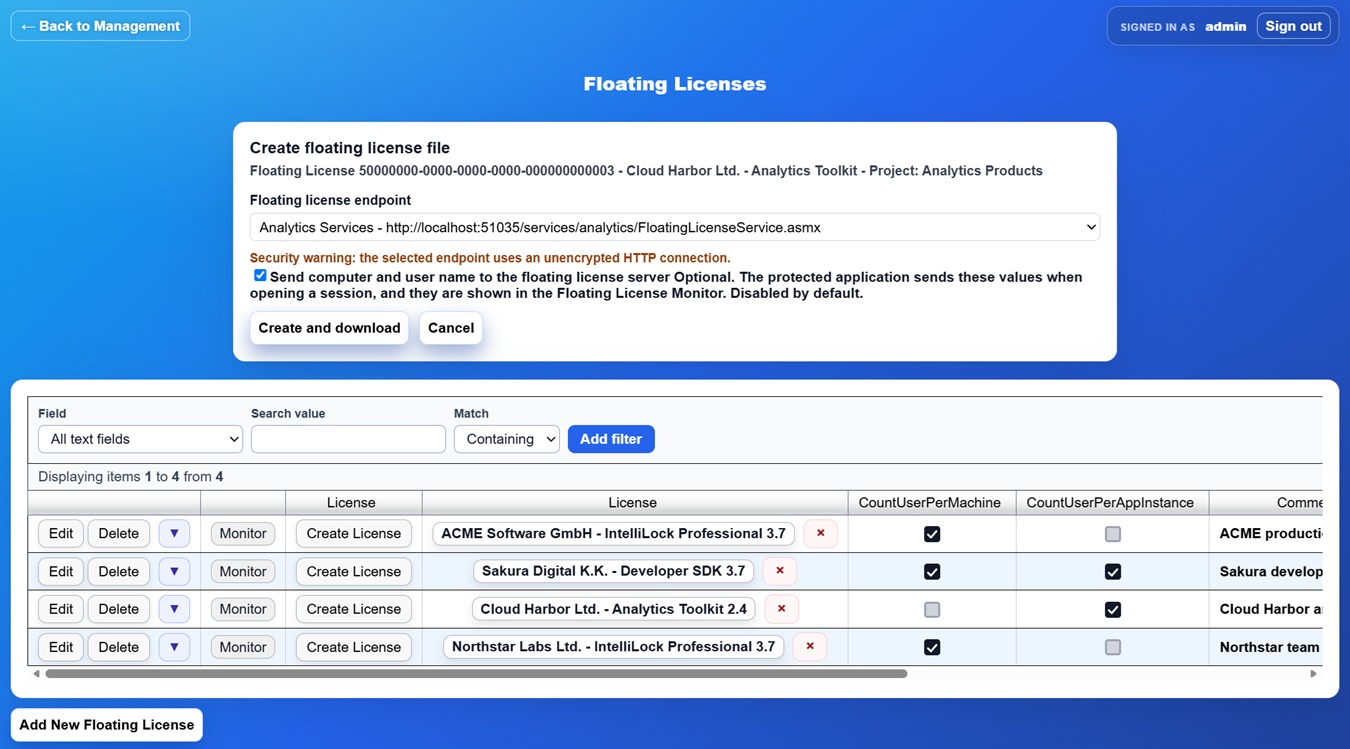
Choose the pool's Create License action. Select the Floating endpoint in the creation panel. If the operator and customer have a valid reason to identify active sessions, optionally select Send computer and user name to the floating license server. The option is disabled by default. Then choose Create and download. IntelliLock Floating Licensing is enabled in the generated file and the selected endpoint URL is stored in it.
The file contains both FloatingLicenseID and LicenseID, plus useful central customer/product/license information. Server-only pool settings and the live blocked state are not copied into the file.
Test with two application instances before delivery. The monitor should show the sessions, and the configured user limit should reject the next disallowed session.
#
Exact and legacy pool selection
- A current file containing FloatingLicenseID is accepted only by that exact pool. The linked central License supplies customer, product, blocking and validity decisions.
- A legacy file without FloatingLicenseID uses the historical customer/product lookup. If several pools match, that old behavior is inherently ambiguous.
- A legacy unlinked pool continues to use its compatibility fields, but System Health warns that it is not connected to a central License.
#
Floating License Monitor
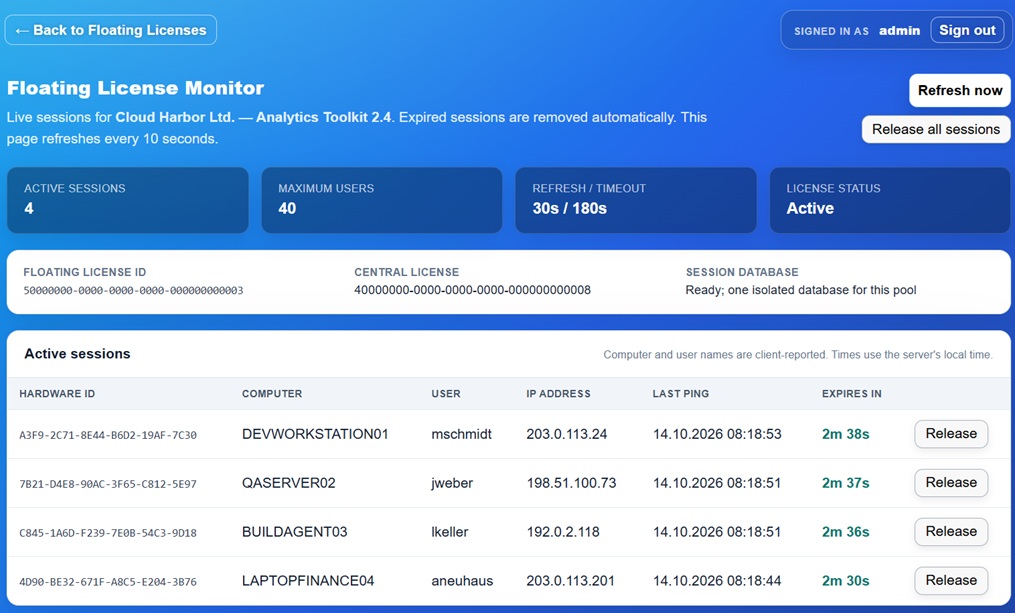
Choose Monitor on a pool to open its runtime view. It refreshes every ten seconds and shows occupancy, maximum users, timeout settings, central License status, Hardware ID, IP address, last ping and remaining session time. Computer and user names appear only when the generated license explicitly enables their transmission. Authorized operators can release one session or all sessions; read-only accounts can only view them. Internal session identifiers are not shown because they are not useful for normal operation.
Each pool retains its volatile sessions in a separate unencrypted SQLite file
under App_Data\floatinglicenses. These files contain runtime coordination data,
not the encrypted business database. Normal ended or timed-out sessions are
removed and do not create a System Health warning.
#
Optional computer and user names
IntelliLock can optionally send the client computer name and username during the initial registration. For files created by License Server, select the option in the Create floating license file panel. For licenses created directly in IntelliLock, use the corresponding Floating License / Concurrent User setting. Both paths are disabled by default. Older servers ignore the optional trailer and older clients remain compatible with the updated server.
When enabled, the values are client-reported, displayed only to authenticated operators and retained only for the lifetime of the volatile session. Enable the option only when the software vendor and its customer have a lawful purpose, appropriate disclosure and a suitable privacy policy.
#
Tracking
The License Tracker can record accepted or rejected initial registrations and, optionally, Hardware IDs. Pings and disconnects are never logged. All options are off by default.