

#
Backup, Database Maintenance and Server Migration
The encrypted .ildb file is only one part of an installation. A recoverable
backup contains the complete App_Data directory and the separately stored
database password.
Choose the operation by its purpose:
Complete backups are required
Never delete or modify the hash_*.pepper file. Without the original pepper,
existing management password hashes cannot be verified. Project files,
installation settings and a portable key (when used) are also outside the
database.
#
Backup procedure
- Back up the complete website, with special attention to all of
App_Data. - Store the database password in a password manager separate from that backup.
- Retain the original
.ilprojfiles and IntelliLock projects used to protect applications. - Test restoration in an isolated IIS site.
- Confirm login, System Health, license generation and one service request.
#
Database Manager
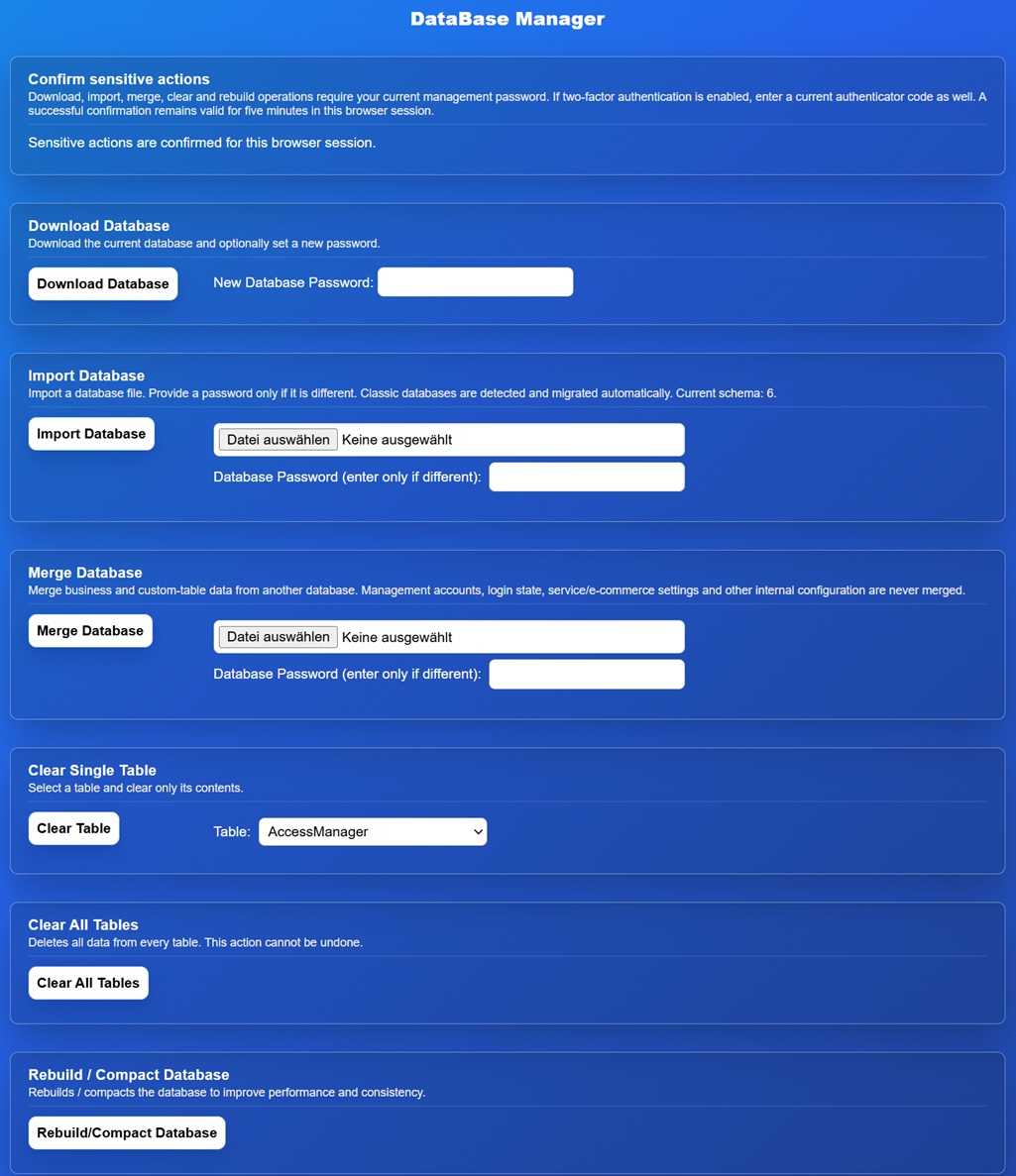
Open System & Advanced > Database Manager. Sensitive actions require recent password confirmation and, when enabled, a TOTP code.
#
Download Database
Downloads the current encrypted database, optionally protected with a different database password. This file alone is not a complete installation backup and may not be usable with a different installation's pepper.
#
Import Database
Replaces the current business database. The manager first works on a temporary copy. It checks the password, database integrity, schema, required tables, management accounts and the installation-specific password pepper. Only a successful staging copy replaces the live database.
Repairable consistency findings do not abort an otherwise safe import. Examples
include a missing project file, an empty or unsafe ProjectFilePath, a missing
Project record or a broken business relationship. The success message reports
the current System Health error/warning totals so an administrator can repair
these records before production use. Runtime project resolution still confines
every file access to App_Data.
Project files are not stored inside the .ildb file. Copy the matching
.ilproj/.nrproj files separately into this installation's App_Data folder.
A full database from another independently configured installation can still be
rejected when its management accounts use a different pepper. Use Merge to
move business/custom data while retaining this installation's accounts and
configuration, or restore the complete matching App_Data set for a full
installation move.
Classic unversioned Web Management databases are detected and migrated through the dedicated legacy importer. Products, customers, sales, licenses and custom tables are converted to the current model. Floating records are linked to a central License only when the relationship is unambiguous; otherwise the import result and System Health report the record for manual correction.
#
Merge Database
Merge adds business and custom-table data to a temporary copy of the live database. It deliberately excludes accounts, passwords, access-control data, login throttles, schema/provider metadata, tracking settings, Service Endpoint configuration, SMTP settings and E-commerce secrets. Classic legacy databases must be imported rather than merged.
#
Clear and rebuild
The page can clear a selected table or all supported records. Treat this as a destructive operation and take a complete backup first. A full clear recreates a secure administrator account and displays its random password once.
Rebuild/Compact Database recreates and compacts the current database to improve consistency and reclaim unused space. The live file changes only after the rebuilt copy passes its checks.
Current databases use schema version 6, stored in both protected metadata
and SQLite PRAGMA user_version. A database with a newer unknown schema is
rejected to avoid destructive downgrades.
#
Moving to another Windows server
A server-bound installation uses Windows DPAPI with LocalMachine scope. After
copying the site and complete App_Data to another server, the website detects
that the installation settings cannot be opened and displays the reconnect
workflow.
- Enter the existing database password.
- Choose server-bound protection or portable protection for the target.
- Complete the rebind.
- Sign in and run System Health.
- Test license generation and every public endpoint in use.
An incorrect database password is rejected before the new binding is saved.
The reconnect page and required replacement screenshot are described in Deployment and First-run Setup.
#
Cloud and multi-instance hosting
Portable protection can be useful when a host replaces Windows machines or does
not preserve DPAPI machine identity. It is less secure if an attacker obtains
the entire App_Data folder because the portable key resides beside the other
files.
Use persistent storage and exactly one active Web Management instance. The current file-based database and per-pool floating session databases are not a distributed multi-node data store. Back up the persistent volume as one unit.